
Microsoft Copilot Use Case for Investment Banking Analysts
June 26, 2026
Investment banking analysts need to actively manage their inboxes to ensure that they remain on top of the latest information. This can be particularly pertinent during a live deal when responding or acting upon any information that has already been updated can be costly in both time and team efforts.
Deals generate threads across counterparties, advisors, and internal teams simultaneously. Coming back to 200 unread emails after a long weekend is not unusual. Microsoft Copilot addresses this directly because it sits inside Outlook and also has full context of a user’s mailbox, calendar, and Teams activity. This means no uploading and no switching windows to manage the content. Copilot can read across multiple chat and planning apps and I can sort the information flow accordingly.
Download a cheat sheet with over 40 helpful Copilot inbox triage prompts that will improve your working day.
How Does Microsoft Copilot Work Inside Outlook and Teams?
Copilot may not be the most powerful large language model available. When it comes to building slide decks, running financial analysis, or constructing models, Claude or Rogo can be stronger tools for financial specialists to use. Most industry firms typically end up running a combination, one major LLM alongside Copilot.
Where Copilot earns its place is because it is integrated directly into Outlook, Teams, OneDrive, Word, Excel, and PowerPoint. This allows it to have context that other AI tools do not have access to. It can see emails, calendars, meeting transcripts, and all OneDrive files simultaneously. For inbox management and deal communication, that integration can be a greater benefit than raw model power.
How to Set Up Microsoft Copilot for Investment Banking
These two setup steps take under 10 minutes. Once configured, they run automatically across every Copilot session without further input.
Step 1: Custom Instructions – Every Draft in Your Voice
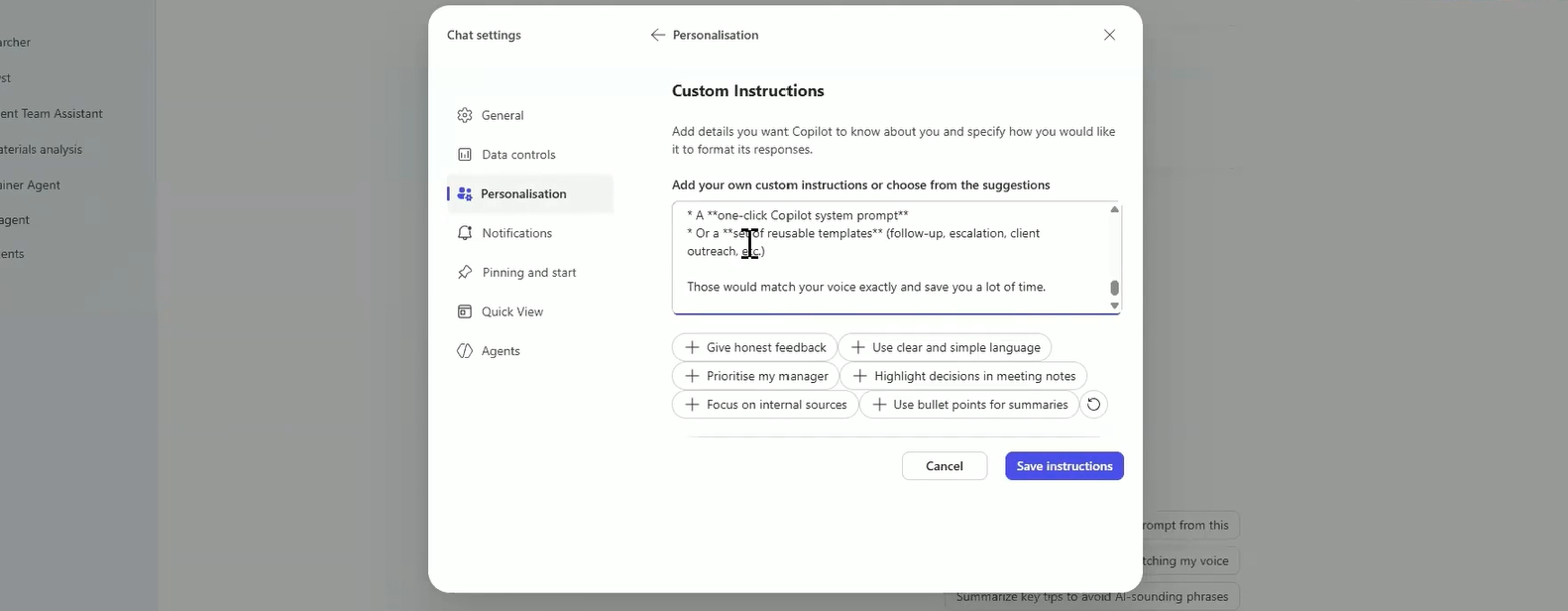
Navigate to Settings > Personalization > Custom Instructions and paste in two profiles:
- Client tone – formal, warm, relationship-focused
- Internal tone – direct, brief, no unnecessary formality
Every drafted reply, follow-up email, and deal update will now match your professional voice automatically. This eliminates the manual editing step that makes AI-drafted emails feel slower than writing from scratch.
Pro Tip: Explicitly add “no em dashes” to your instructions. Copilot defaults to em dashes which immediately signal AI-generated content to readers.
Step 2: Scheduled Prompts – Your Morning Deal Briefing on Autopilot
Run your inbox triage prompt, then select the Schedule option at the bottom of the response. Set it to:
- Time: 8am weekdays
- Frequency: Daily
- End date: Set quarterly and review
A prioritized deal summary lands in your inbox every morning before you open a single thread. Apply the same scheduling logic to:
- Sector news updates
- Deal channel summaries
- Counterparty activity reports
Set it once. It runs every day without further input.
Step 3: Take Copilot Off Your Desk
The Copilot mobile app delivers the same core capabilities as the desktop version:
- Inbox triage by deal and priority
- Deal context searches across email and Teams
- Document summaries without opening attachments
- Live meeting catch-ups mid-call
For analysts travelling between client meetings, working across time zones, or managing live deals outside office hours, the mobile app removes the need to return to a desk for routine deal updates.
Download the app, sign in with your Microsoft 365 credentials, and your full mailbox context travels with you.
How to Sort Deal Emails by Priority in One Prompt
The most direct use case for Copilot summarizing information flow is the morning triage prompt. Rather than opening every thread individually, users can ask Copilot to do the sorting for them.
Example Prompt
“Summarize the unread emails in the last 24 hours by deal, flagging anything that needs my reply today.”
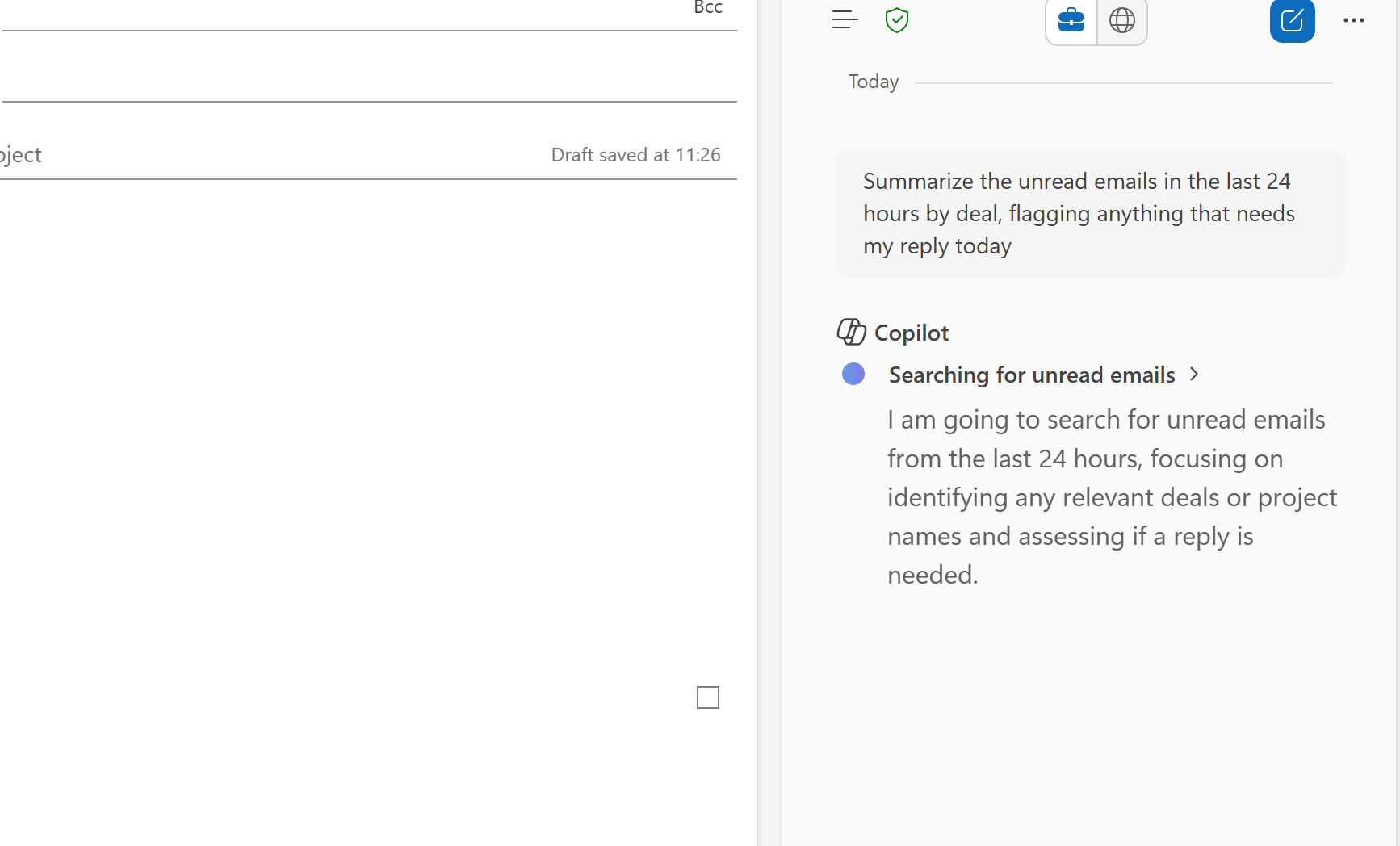
This works particularly well at the start of the day or after a period of time away from your inbox. If your inbox has accumulated over a weekend or holiday, you can ask:
“What are the five most important things I should focus on right now? What is the priority?”
Expert Instructor’s Note
Copilot is not always perfect at surfacing the most urgent items, but it is consistently good at picking out what needs attention. The key advantage is its speed users are not trawling thread by thread. Copilot can provide a structured view across all active deals at once.
How to Automate Your Daily Deal Inbox Summary
Once a user has created a sort prompt that works well, this can be automated for future use. Copilot allows users to schedule prompts to run at a specific time, on a recurring basis.
“Summarize the most important items in my inbox.”
This prompt will then need to be set to a daily or regular timing.
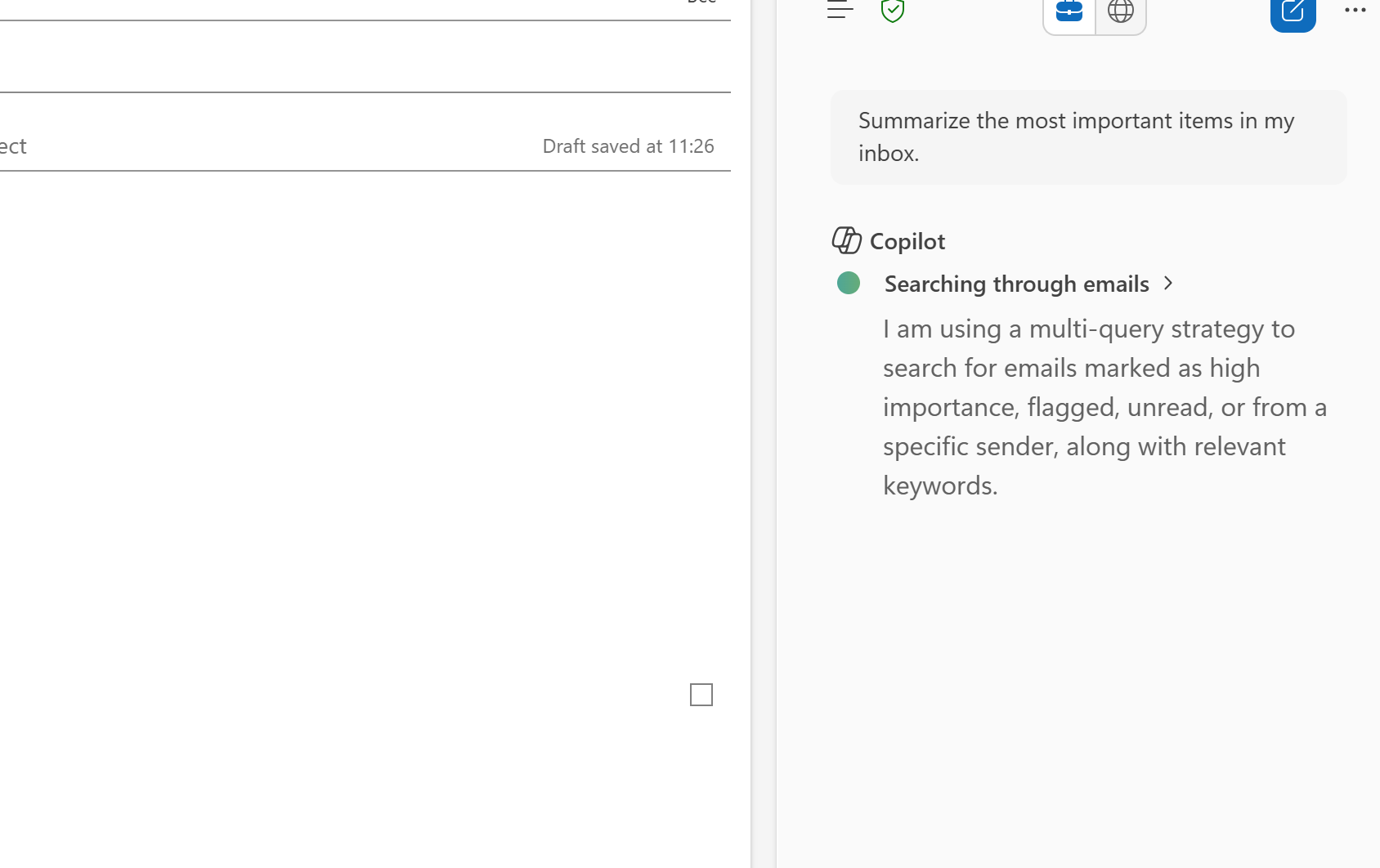
Users can schedule this to run at 8am every weekday. The result will land in their inbox automatically each morning. This may sound counterintuitive having an AI summary delivered by email to an already bulging inbox, but the output is a clean, prioritized view of what needs attention before you open a single thread.
Setting up a Scheduled Prompt
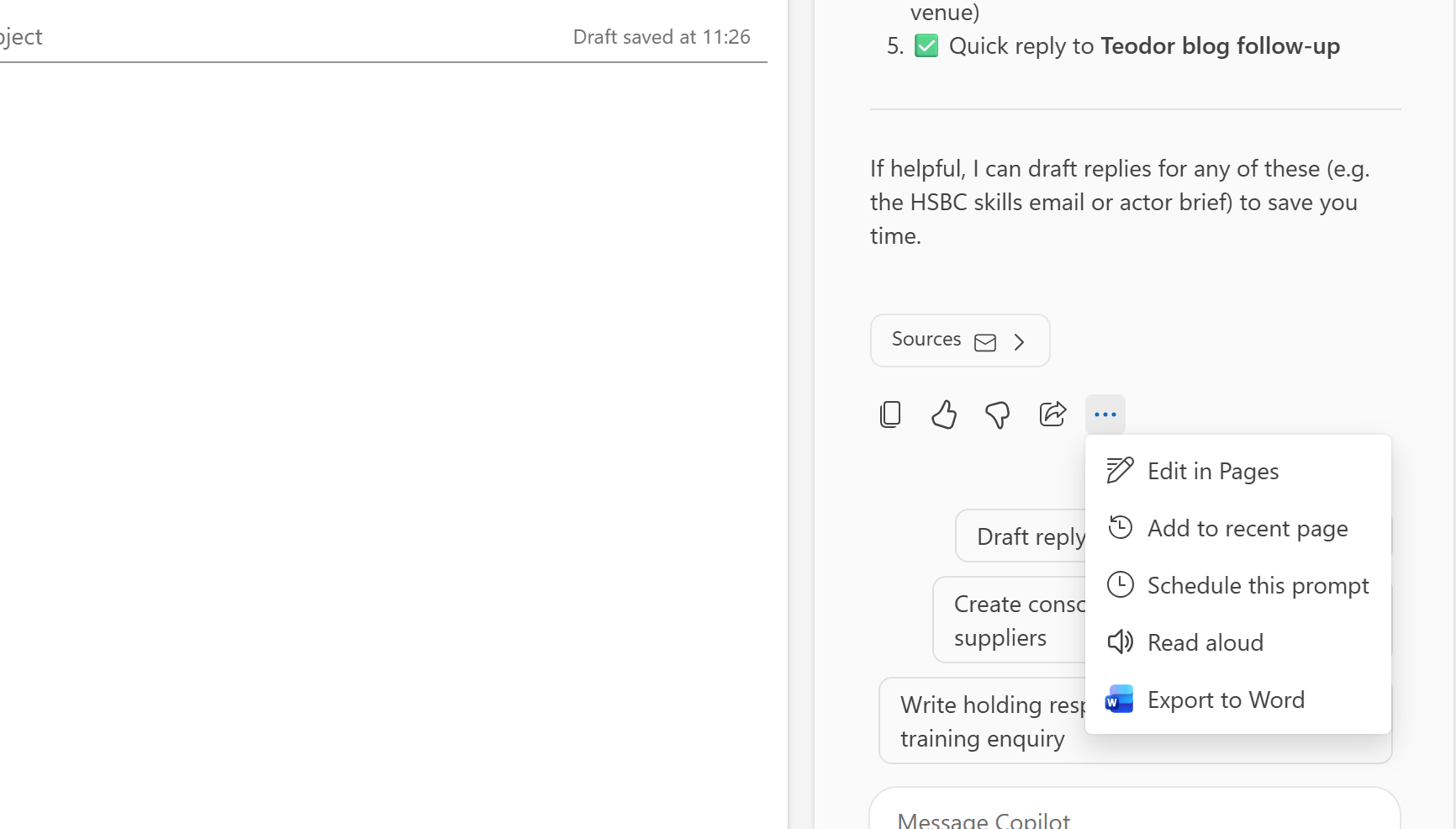
To set this up run a prompt in Copilot, then use the schedule option that appears at the bottom of the response. Set the time, frequency, and end date. You can also schedule news and sector update prompts the same way.
How to Pull Deal Context Across Email, Calendar and Teams
Copilot can search across the entire Microsoft environment simultaneously. This is one of its most practically useful features for analysts managing multiple live transactions.
“Summarize the emails and meetings I have had with [colleague name] in the last three weeks.”
What Copilot returns is a combined view drawn from Outlook, calendar entries, meeting transcripts, and Teams chat. For a counterparty or advisor that you have not spoken to recently, this gives you a full picture in seconds before getting on a call. This is also useful for clients: Copilot pulls more context than a LinkedIn profile as it is drawing from your actual communication history with them.
How to Check Your Availability for Deal Meetings
Trying to schedule meetings and updates across deal teams can be frustrating and waste significant amounts of time. Again, Copilot can handle this directly from a prompt:
“What is my availability next week? Ensure there is at least a 30-minute gap between meetings.”
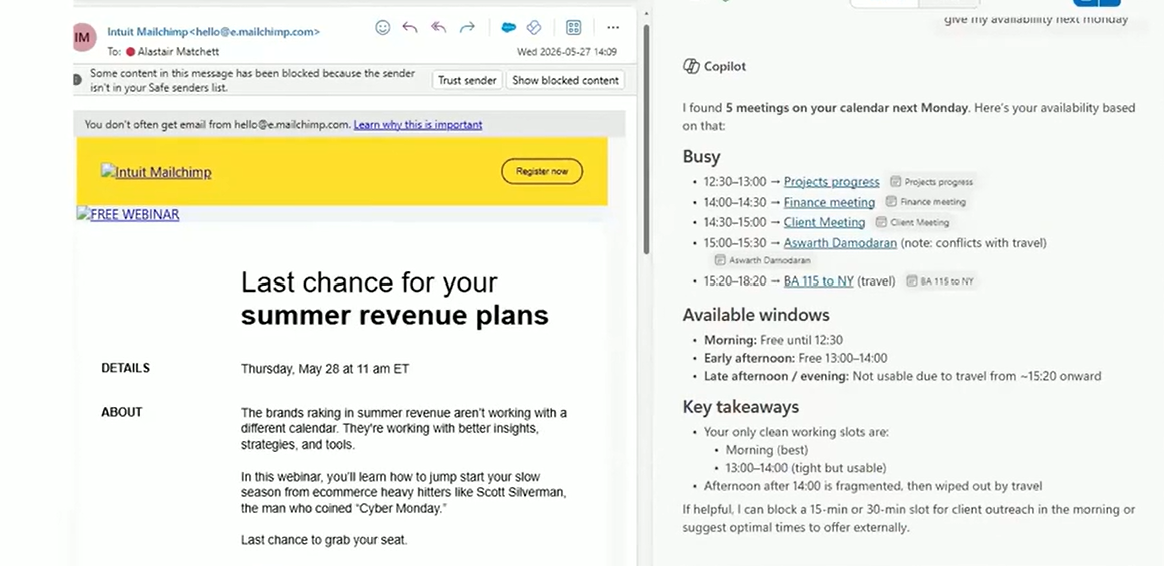
One important nuance is that Copilot will treat unaccepted meetings as free slots unless you tell it otherwise. You can add “include meetings I have not yet accepted” to the prompt if that is relevant to your diary.
“Just give me the available slots I can email to someone.”
This strips out the full diary view and returns only the open times, ready to paste into an email reply. Again, this is a time-saving step that ensures your outflow from Copilot is suitably tailored for professional use.
How to Make Copilot Draft Emails in Your Own Voice
One of the most common complaints about AI-drafted emails is that they are obviously auto-created and responses can sound like “AI slop.” The fix to this is a one-time setup in Copilot’s custom instructions to ensure the tone is in keeping with your own professional language and approach.
- Ask Copilot to review the last 12 months of your sent emails and describe your client email tone and your internal email tone as two separate profiles
- Paste those profiles into Copilot’s custom instructions under Settings > Personalization
Once this is done, you can specify which tone to use when drafting.
“Reply to this email with my client tone.”
“Redo the email using my internal tone.”
Typically the client tone will be warmer and more formal. The internal tone can be shorter, less polished, and more direct to reflect familiarity with colleagues. Getting this ‘voice’ right early can save future drafted replies from sounding generic and careless.
Expert Instructor’s Note
Specifying “no long dashes” in the instructions is worth doing explicitly. Copilot defaults to ’em dashes’ in its output, which can make replies read as AI-generated. Name the formatting you want to avoid any glaring issues.
How to Summarize Deal Documents Without Opening Them
Copilot offers further benefits within the Outlook system. When an email arrives with a document attached, Copilot can summarize the attachment directly from the Outlook interface.
Click the email, open Copilot in the sidebar, and prompt:
“Summarize the content of the attachment.”
Copilot can read the attachment and return a summary without opening the document. This key step that makes this work across the Microsoft suite is saving the attachment to OneDrive. Once it is in OneDrive, Copilot can reference it in Excel, Word, and PowerPoint using the forward slash file selector.
How to Get Up to Speed on Live Deal Channels
For analysts working on live transactions with dedicated Teams channels or returning to a project, Copilot can summarize channel activity across a defined time period.
“Summarize the channel for the last seven days.”
This is useful when returning from leave or joining a deal mid-process. Rather than reading back through weeks of messages, you get a structured overview of what has been discussed and what is outstanding.
The same logic applies in meetings. If you join a Teams call 10 minutes late, you can prompt Copilot mid-meeting: “Give me the overview of what has happened so far.” Copilot reads the live transcript and catches you up in real time.
Where Microsoft Copilot Falls Short for IB Analysts
Microsoft Copilot is not designed for core investment banking tasks. Financial modeling, LBO construction, DCF valuation, and pitchbook creation require purpose-built tools. For those workflows, Claude and Rogo are the stronger choices for IB analysts.
Copilot’s competitive advantage sits in Microsoft 365 workflow automation, specifically inbox sort, deal communication management, meeting transcription, and cross-platform document summarization. For investment banking analysts managing multiple live deals simultaneously inside Outlook and Teams, Copilot delivers consistent, measurable time savings where other AI tools lack native integration.
Microsoft Copilot FAQs for IB Analysts
Can Microsoft Copilot triage emails by specific deal in Outlook?
Yes, you can prompt Copilot to summarize unread emails grouped by deal and flag anything requiring a reply that day. Copilot reads across the full mailbox and returns a prioritized view without users needing to open individual threads.
How does Copilot know what is in my inbox?
Copilot has access to the full Outlook mailbox, OneDrive files, calendar, and Teams chats. It searches across all of these simultaneously when users run a prompt. However, note it cannot access anything on the system that the user has not been granted permission to see.
Does Microsoft Copilot train on my firm’s email data?
No, when using the organizational version of Copilot, it does not train on the tenant data. The individual firm’s IT team will typically manage data controls settings.
How do I get Copilot to draft emails that sound like me?
Ask Copilot to review your last 12 months of sent emails and produce a summary of your client tone and internal tone as two separate profiles. Paste these into Settings > Personalization > Custom instructions. Then specify which tone to use when prompting a draft reply.
Can I schedule a daily inbox summary in Microsoft Copilot?
Yes, users can run a triage prompt, then use the schedule option at the bottom of the response to set a time and recurrence. The summary will then be delivered to your inbox automatically.
Is Microsoft Copilot good for investment banking analysis?
For inbox management, meeting transcripts, and communication workflows, yes, it is a useful tool. For financial modelling, valuation, and pitchbook construction, other tools are more capable. Most firms run Copilot alongside a primary LLM such as Claude or Rogo.
What is the OneDrive connection and why does it matter?
Saving attachments to OneDrive means Copilot can reference them across the full Microsoft suite: Outlook, Word, Excel, and PowerPoint. This removes the need to upload and re-upload the same file. Use the forward slash file selector in any Microsoft application to pull in the saved file.
Master the Full AI Stack for Investment Banking
Every prompt in this post comes from a live Copilot training session run with analysts across Wall Street. The full reference sheet covers all 33 prompts across inbox triage, drafting, deal context, meetings, channels, and coaching.
This walkthrough covers just one workflow inside one tool. The AI for Finance: IB Analyst Training Series covers seven tools across the entire analyst workflow. This is taught by experienced former bankers from Goldman Sachs, J.P. Morgan, and Merrill Lynch.
What students will get across the sessions:
- Endex: AI-powered financial modeling in Excel (including three-statement models, LBOs, DCFs)
- Shortcut: an AI agent for comps tables, sensitivity analyses, and PDF data extraction
- Claude: for due diligence, covering CIM summaries, credit agreements, management Q&A
- Rogo: for real-time deal research, company profiling, precedent transactions
- Claude: for pitch book creation and PowerPoint integration
- ChatGPT: advanced prompting for valuation, IC memos, and client communication
- Microsoft 365 Copilot: workflow acceleration across Outlook, Word, Excel, and PowerPoint