
How to Remove Leading Zeros in Excel
June 15, 2026
If you’ve ever imported data from Bloomberg, a CRM, or any legacy system and found your numbers sitting on the left side of the cell, its usually means you’ve got a leading zero problem. Excel has stripped the zeros and stored the values as text, which can mean that your SUM returns ‘0’, your VLOOKUP fails silently, and your entire model is wrong before you’ve typed a single formula.
Here are the methods that fix it, with the exact formulas from the examples.
How to Tell If You Have the Problem
Firstly, before picking a fix, look at the cell alignment. Numbers stored as text sit on the left-hand side of the cell. True numbers sit on the right-hand side. If your employee IDs, product codes, or security identifiers are hugging the left wall after an import, they are text, and no amount of formatting will make SUM work on them.
A LEN check can confirm this is the case (Type ‘=LEN’ and then select a cell such as ‘(A2)’). A value showing “00145” has a LEN of 5. After conversion, the true number 145 has a LEN of 3. That two-character drop is your proof the leading zeros have been removed, and the value is now numerical. To follow this in more detail, download the free Financial Edge Excel template.
There are then five methods that can be used to remove leading zeros. These are all in the free Excel download with the appropriate formulas and examples provided.
1) Multiply by 1
This can be the fastest fix, and the one most used under deadline pressure.
Type ‘1’ in any empty cell. Copy it. Select your data column.
Go to Paste Special
Multiply
OK.
Excel performs a ×1 calculation on every cell, which forces the text to convert to a true number. This will strip the leading zeros in place.
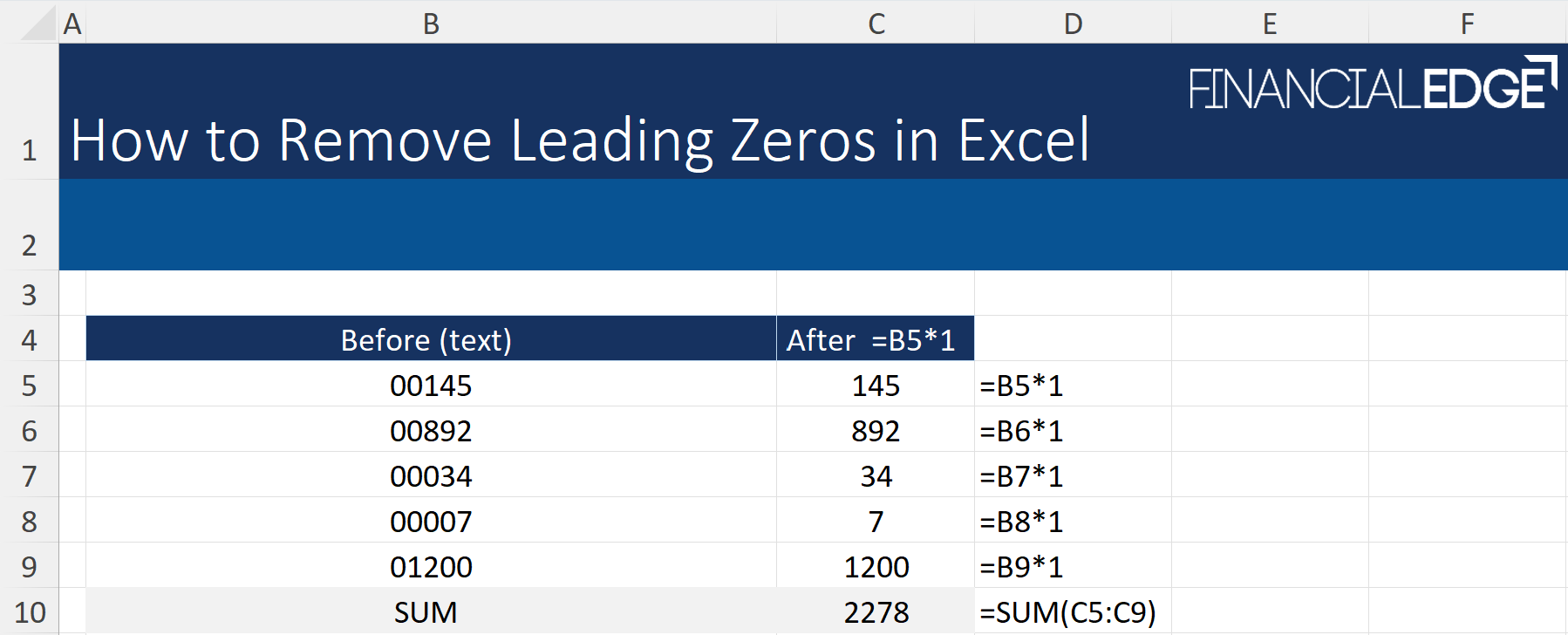
The examples show exactly what happens. (This is shown in the Method 1 tab in the Excel download.) Column B holds the raw imported values, “00145”, “00892”, “00034”, “00007”, “01200”, stored as text, left-aligned. Column C runs =B5*1, =B6*1 and so on down the column. The results are 145, 892, 34, 7, and 1,200 – right-aligned true numbers.
The SUM row at the bottom makes the point clearly. Before conversion, summing the text column returns ‘0’. After using the multiply by 1 method ‘=SUM(C5:C9)’ returns 2278. That is the real test, not how the cells look, but whether SUM function works.
2) VALUE Function
This is also known as the ‘non-destructive’ method. The original data stays in column B untouched while the clean version is shown in column C.
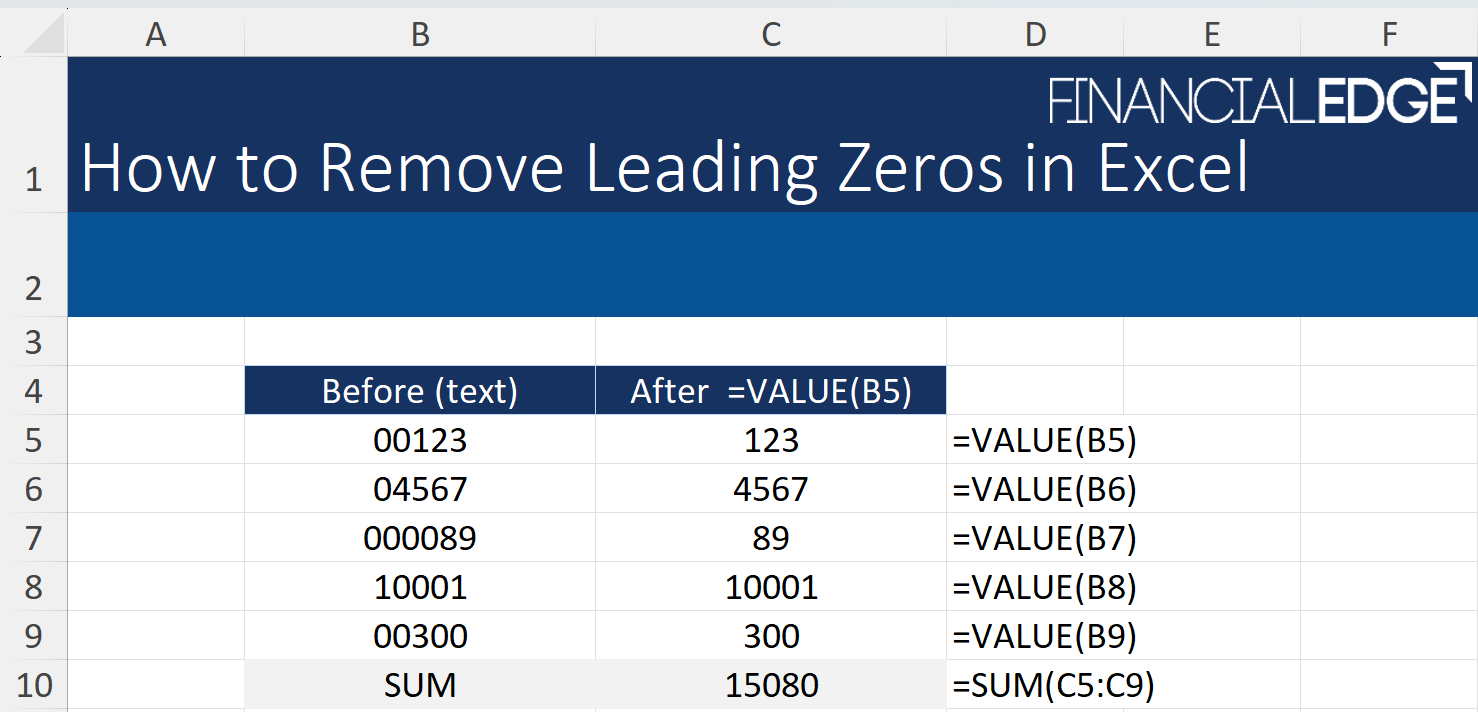
Using the second tab in the Excel download, in the first empty cell of your ‘helper’ column C, type ‘=VALUE(B5)’ and drag it down. The formula converts each text-formatted number to a true numeric value, dropping the leading zeros as part of the conversion.
The examples run through five product codes: “00123”, “04567”, “00089”, “10001”, “00300”. Each =VALUE(B5) call returns 123, 4567, 89, 10001 and 300 respectively. The =SUM(C5:C9) at the bottom returns 15080, confirming all five values are now in numerical format.
Once you are satisfied, copy column C, paste as Values Only back into column B, and you can delete column C.
When VALUE Fails – Use IFERROR
The problem with the function ‘=VALUE()’ is that it returns ‘#VALUE!’ the moment it hits a non-numeric string. In a real import, the data may have a mix of numeric codes, text labels, and blanks so the solution to leading zeros will need to be more robust.
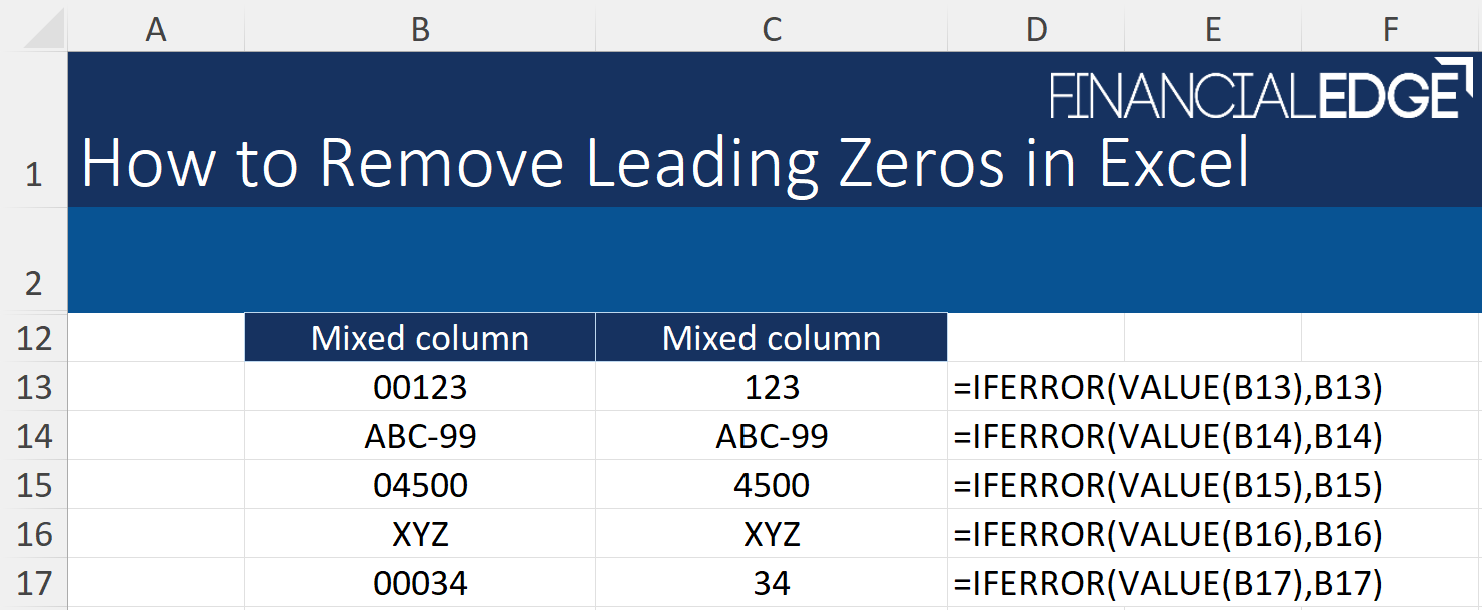
The safe version to solve this is by using ‘=IFERROR(VALUE(B2), B2)’. The second table in the sheet runs this against a mixed column, “00123”, “ABC-99”, “04500”, “XYZ”, “00034”. The numeric entries convert cleanly to 123, 4500 and 34. The text entries “ABC-99” and “XYZ” return their original values unchanged. Nothing breaks regardless of what the column contains.
This is the version investment bankers tend to use because Bloomberg exports (and other data sources) are typically never clean.
3) Text to Columns
There is no formula required for this method. Simply select your column, go to Data → Text to Columns, and click Finish immediately without changing any settings. Excel re-parses every cell as if freshly typed, dropping leading zeros from numeric strings automatically.
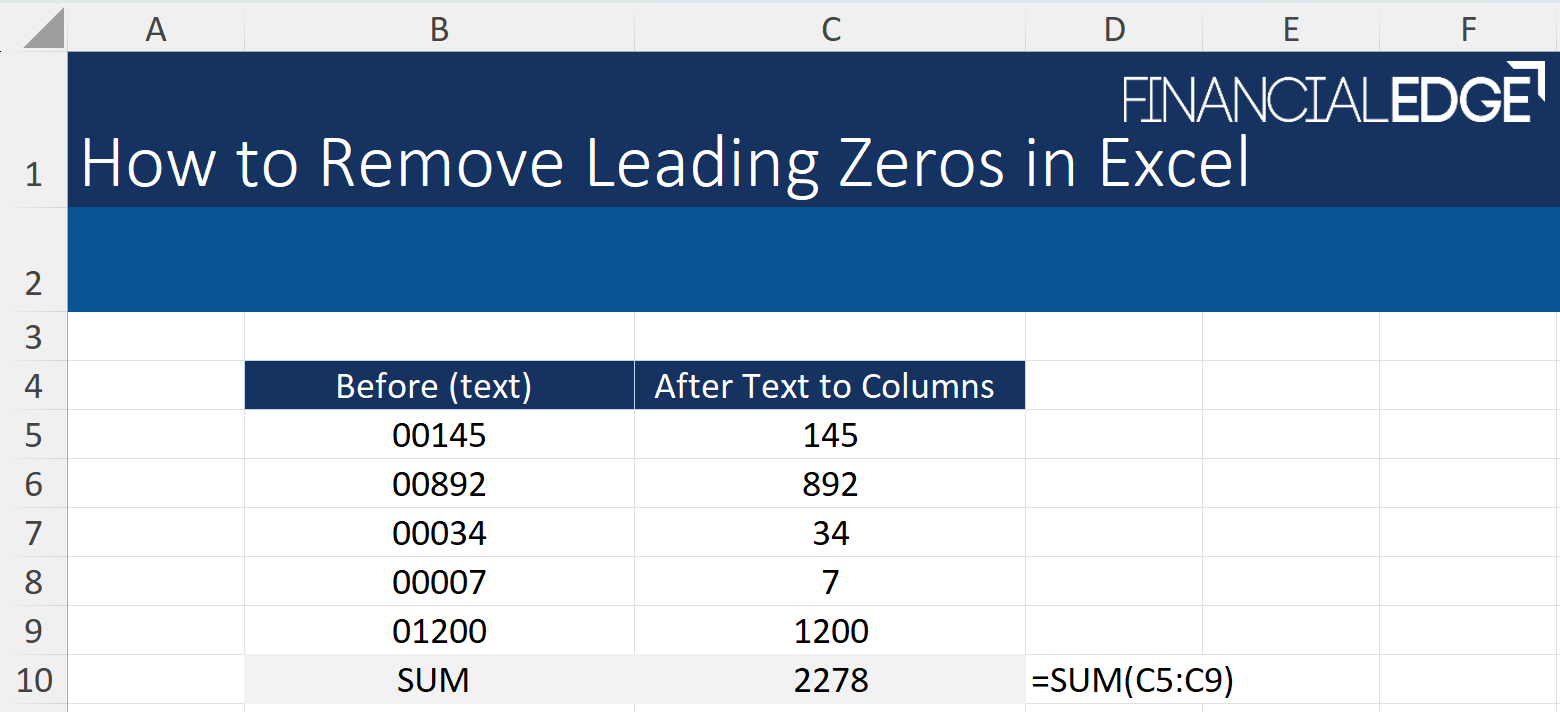
The examples show the same five values: “00145”, “00892”, “00034”, “00007”, “01200”, converting to 145, 892, 34, 7 and 1200. The ‘=SUM(C5:C9)’ confirms 2278.
One important caution: do not use this on ZIP codes, CUSIPs, SEDOLs or any identifier where the leading zero is part of the value. Text to Columns is an irreversible move. It is best used on genuinely numeric data where the zeros are import artefacts and are not meaningful characters.
4) Change Format to General
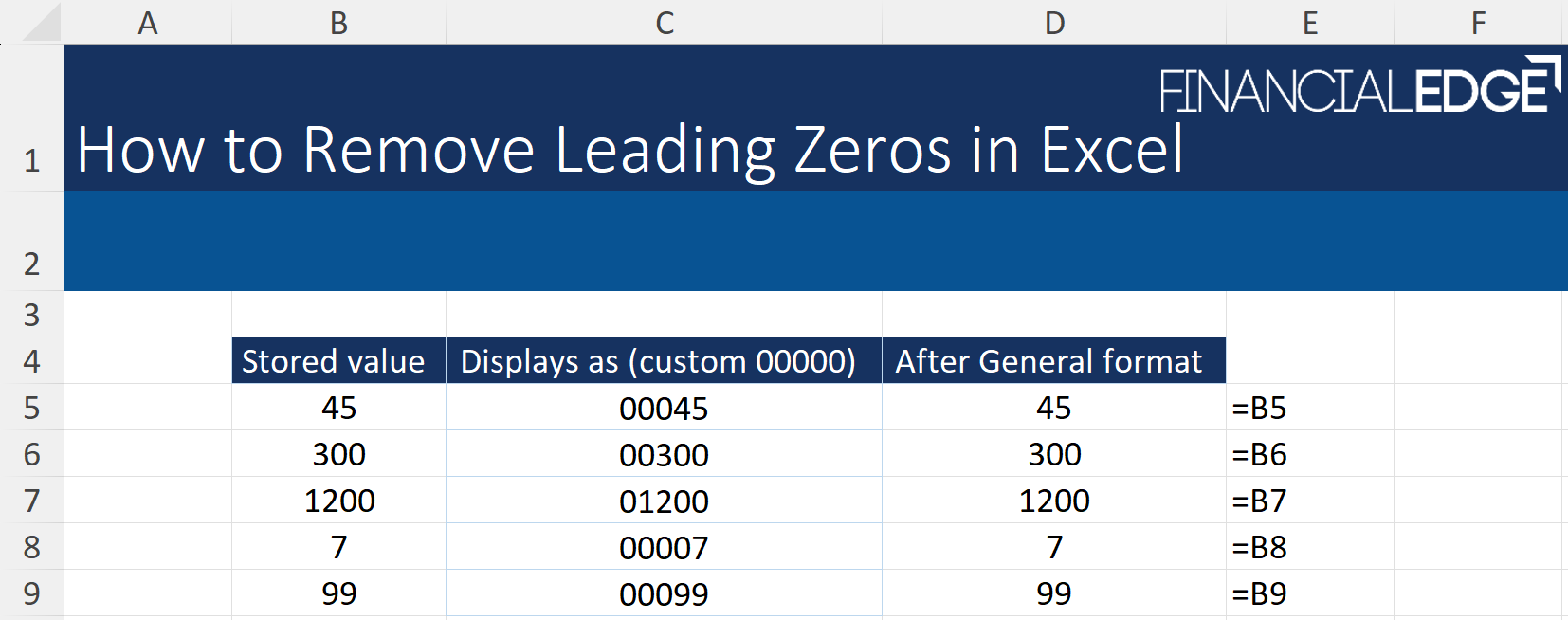
This method only applies when the zeros come from a custom number format rather than text storage. If the cell B45 in the example contains the true number 45 but is formatted as 00000 to display “00045”, no conversion is needed, the underlying value is already correct.
The examples show this clearly. Column B holds the stored values: 45, 300, 1200, 7, 99. Column C shows what the custom format 00000 makes them look like: “00045”, “00300”, “01200”, “00007”, “00099”. Column D runs ‘=B5’, ‘=B6’ and so on, simply referencing the stored value and returns 45, 300, 1200, 7, 99 with no conversion needed.
The fix is:
- Ctrl+1
- Number tab
- General
- OK
This is changing the display mask, rather than the underlying data.
5) Alphanumeric Strings
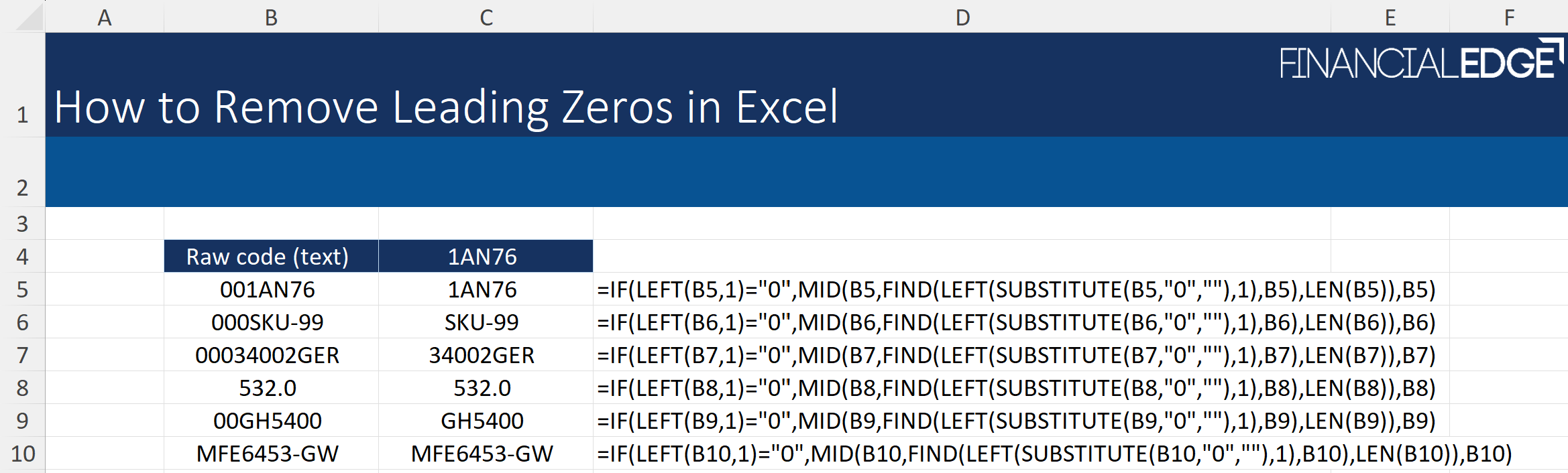
If the methods above all fail on codes like “001AN76” or “000SKU-99″ this will require method 5 to correct. Try typing ‘=VALUE(B5)’ into a cell on this tab, and rather than get the answer ‘001AN76’ and you get ‘#VALUE!’ because the string contains letters. Multiplying by 1 will also fail for the same reason.
The fix to address alphanumeric strings is this formula:
‘=IF(LEFT(B5,1)=”0″,MID(B5,FIND(LEFT(SUBSTITUTE(B5,”0″,””),1),B5),LEN(B5)),B5)’
This formula works by stripping all zeros with SUBSTITUTE to identify the first non-zero character. It then uses the ‘FIND’ function to locate where that character sits in the original string, then returning everything from that position onwards using the ‘MID’ function.
The examples on Tab 5 in the Excel run through six codes, which can all have the leading zeros removed using this formula. “001AN76” returns “1AN76”. “000SKU-99” returns “SKU-99”. “00034002GER” returns “34002GER”. Note: the zeros in the middle of the string are preserved, only the leading ones are removed. “MFE6453-GW” has no leading zeros and returns unchanged.
The Confirmation – The LEN Final Check
This is not an actual removal method, but the diagnostic tool used for recognizing leading zeros and text have all been dealt with appropriately. Analysts can run ‘=LEN(cell)’ before and after any conversion to confirm the transformation worked appropriately. This will flag if any data is still capturing the leading zeros.
The ‘LEN Check’ tab in the Excel template provided has four columns (columns B-E). Column B holds the raw text values. Column C runs a length check ‘=LEN(B5)’ on this data, returning the value of ‘5’ for all of the data points since “00145”, “00892” and the rest are five characters including the leading zeros.
Column D runs ‘=VALUE(B5)’ to convert them into numerical values using Method 2. In column E we can see the character length check ‘=LEN(D5)’ on the value method results. This returns ‘3’ for 145, ‘3’ for 892, ‘2’ for 34, ‘1’ for 7, and ‘4’ for 1200. This confirms that the leading zeros have been removed and are no longer present in the data set.
Within investment banking, this check can be particularly useful for CUSIPs and SEDOL codes. A CUSIP must be exactly 9 characters. If the LEN check after import returns 8, it suggests that the leading zero was stripped during import and the security lookup will return ‘#N/A’ for every row or data search that it is used for.
Which Method to Use?
When looking at removing leading zeros, here’s a quick guide for what might be best to use:
- Speed: for looking at pure numeric data under a tight deadline, Multiply by 1 is the fastest way to remove leading zeros
- Maintain the Original: for non-destructive work where the analyst needs to keep the original, use VALUE
- Mixed Data: for mixed columns with text and numbers in the same field, always use IFERROR(VALUE(A2),A2)
- Tickers and Codes: for alphanumeric codes like product or security identifiers, use the SUBSTITUTE/MID formula
- And always run a LEN check before running any VLOOKUP or XLOOKUP on financial identifiers, a one-character difference between your lookup column and your reference table will silently return ‘#N/A’ for every row